
How to Sign a PDF on iPhone Free (2026) — No App Needed
To sign a PDF on iPhone, open the file in Mail or the Files app and tap the Markup icon in the bottom toolbar. Tap the blue + button, choose Add Signature, sign with your finger, then tap the blue checkmark. Drag the signature onto the signature line and pull a corner handle to resize it. Markup ships with iOS, so there is nothing to install and nothing to pay.
That covers a simple one-page document. Markup has no typed signature, it signs one page at a time, and it saves your signature as a movable object instead of fixing it into the page. If any of that matters for your document, go to Method 2 or sign it in your browser instead.
Method 1 · Built into iOS
Sign a PDF on iPhone with Markup
Markup is Apple's own annotation layer. It works in Mail, Files, Photos and Quick Look on every iPhone running iOS 15 or later. No account, no cost.
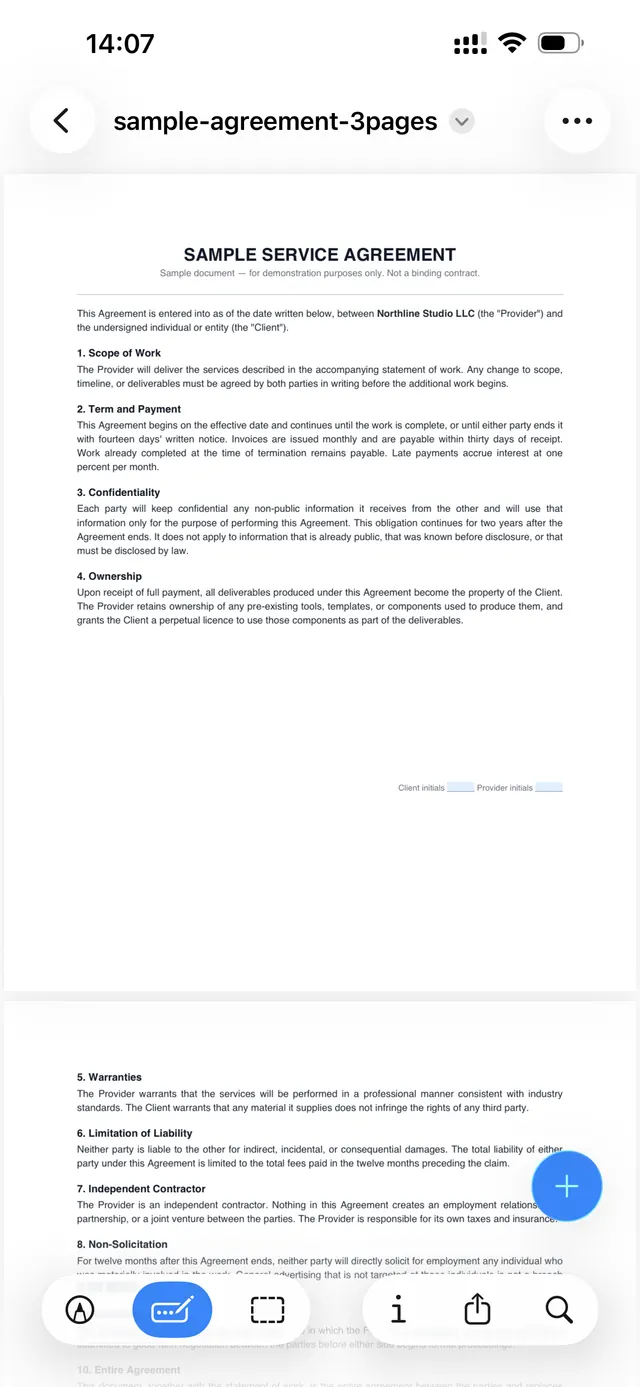
Open the PDF and turn on Markup
Open the file in the Files app, or tap the attachment inside Mail. Tap the Markup icon in the bottom toolbar. It turns blue and a round + button appears in the bottom-right corner. Any fillable fields in the document get a pale blue tint at this point.
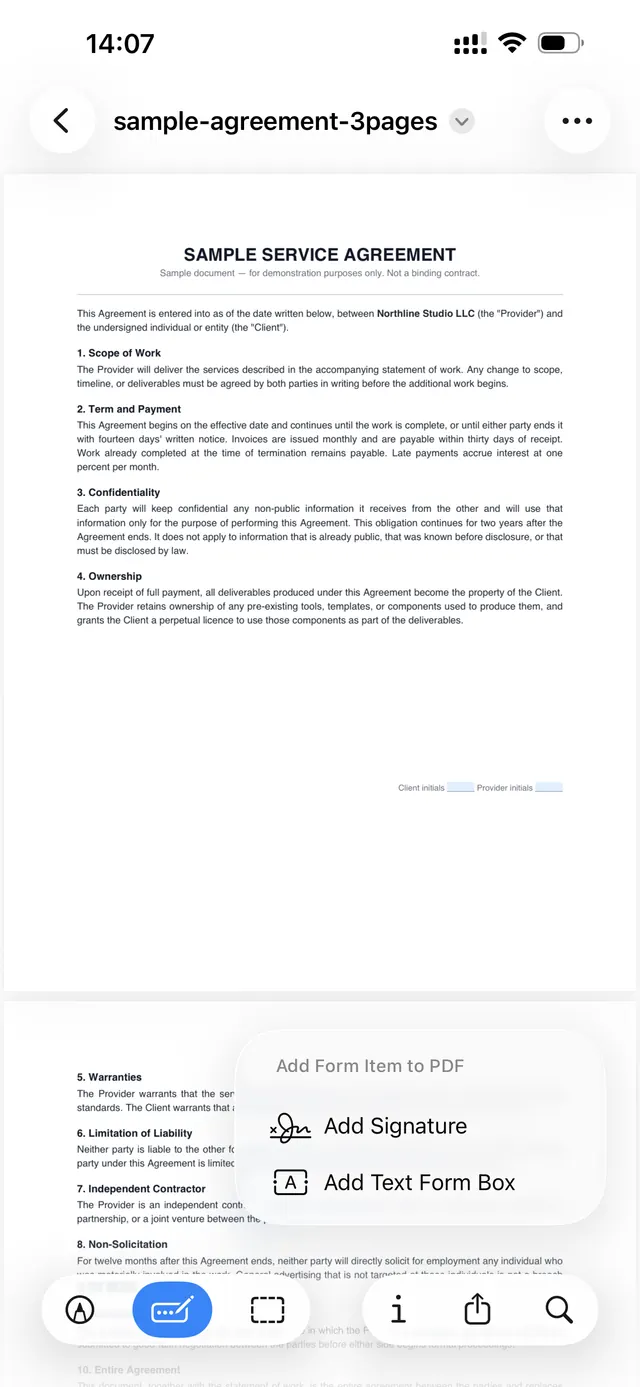
Tap + and choose Add Signature
The Add Form Item to PDF menu opens with two entries: Add Signature and Add Text Form Box. Tap Add Signature. If you have signed something on this iPhone before, your saved signatures appear straight away with an Add or Remove Signature button underneath.

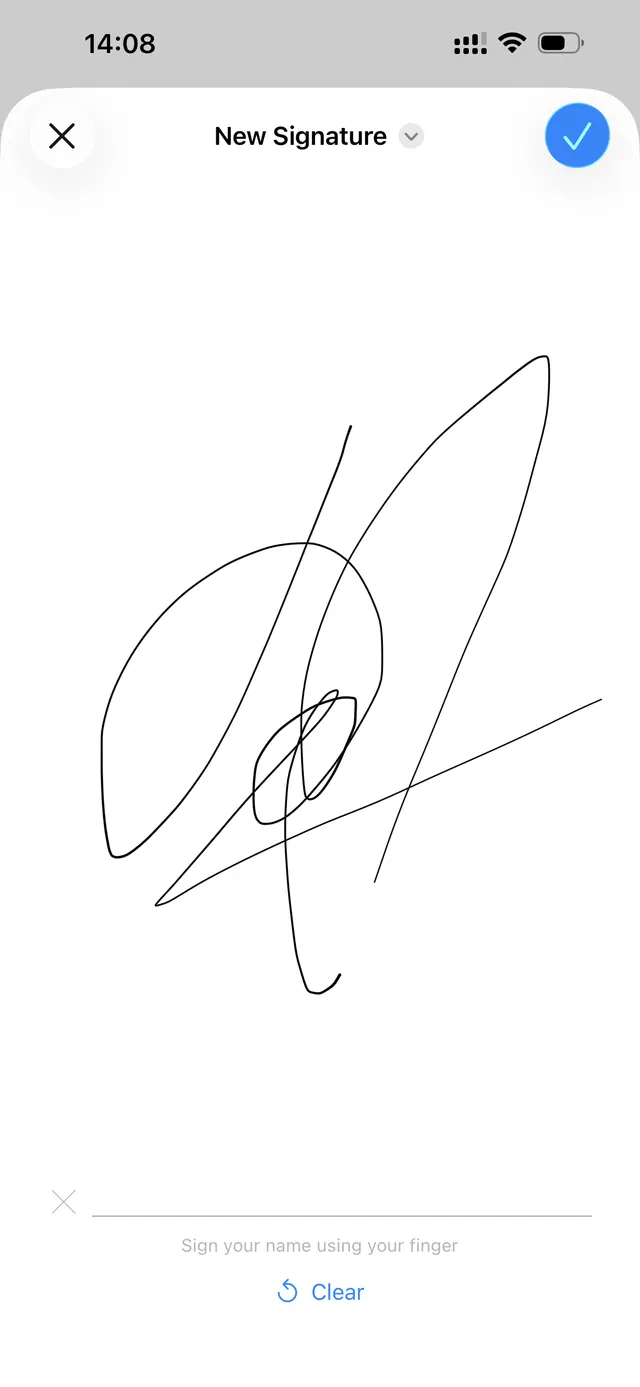
Sign with your finger
The canvas opens with the prompt "Sign your name using your finger". Sign, then tap the blue checkmark. Tap Clear if you want another go.
Turn the phone sideways before you sign. The canvas roughly doubles in width and the result comes out much closer to how you actually sign. Most people skip this and end up with a cramped signature.
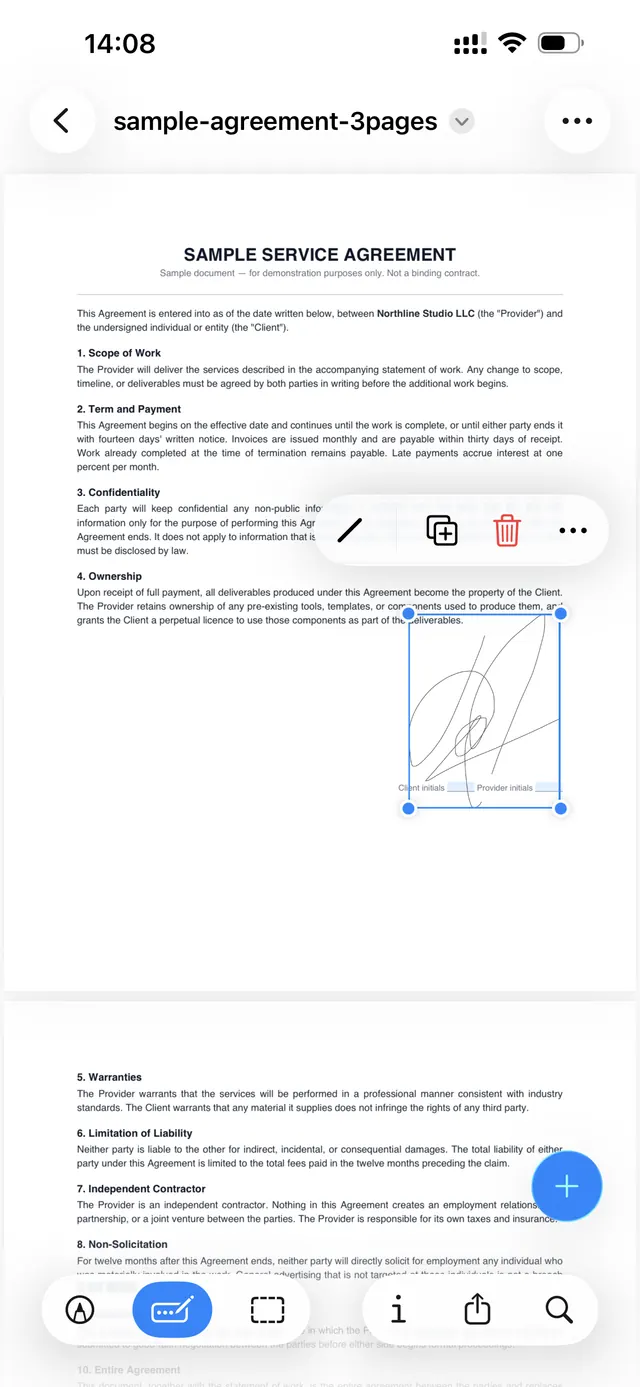
Place it and resize
The signature lands on the page inside a blue selection box. Drag it onto the signature line and pull the corner handles to size it. If you would rather compare every way of adding a signature to a PDF before committing to one, that guide covers drawing, typing and uploading an image side by side. The small toolbar above it lets you change the stroke colour, duplicate the signature or delete it. Tap Done to save. iOS writes over the original file, so duplicate the PDF first if you need to keep a clean copy.
Four things Markup can't do
- No typed signature. The canvas takes finger input only. If a signature drawn on a six-inch screen looks nothing like yours, Markup offers no font-based alternative.
- One page at a time. There is no way to apply a signature across pages. A twelve-page contract that needs initials on every page means twelve manual placements.
- Form fields stay manual. Add Text Form Box gives you a floating box you position yourself. Markup does not read the fields already built into the PDF, so a W-9 with twenty fields means twenty boxes to line up by hand.
- The signature stays movable. Markup keeps it as an annotation instead of flattening it into the page. That is why you can still drag it after saving, and in many PDF editors so can whoever receives the file.
If none of those apply, you are done. The rest of this page covers the cases where they do.
Method 2 · In the browser
Sign a PDF on iPhone in Safari, no app
This covers all four gaps above and runs in Safari or Chrome. There is nothing to install and no account.
Draw or type your signature
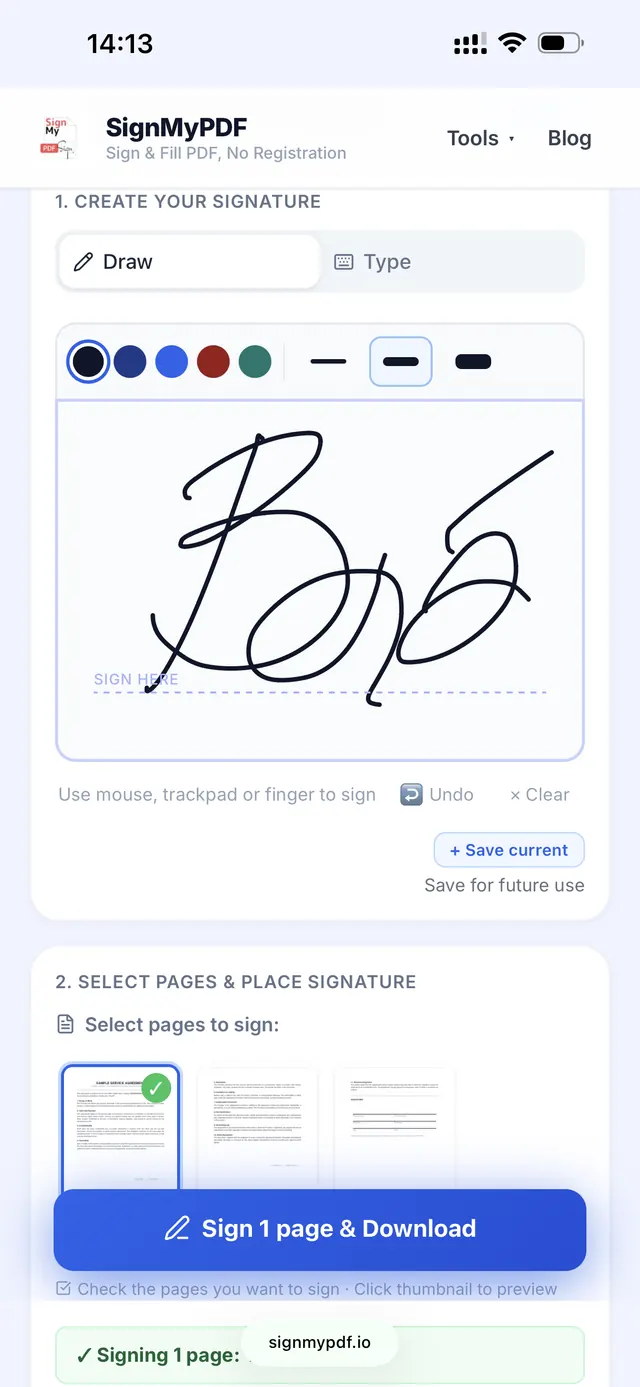
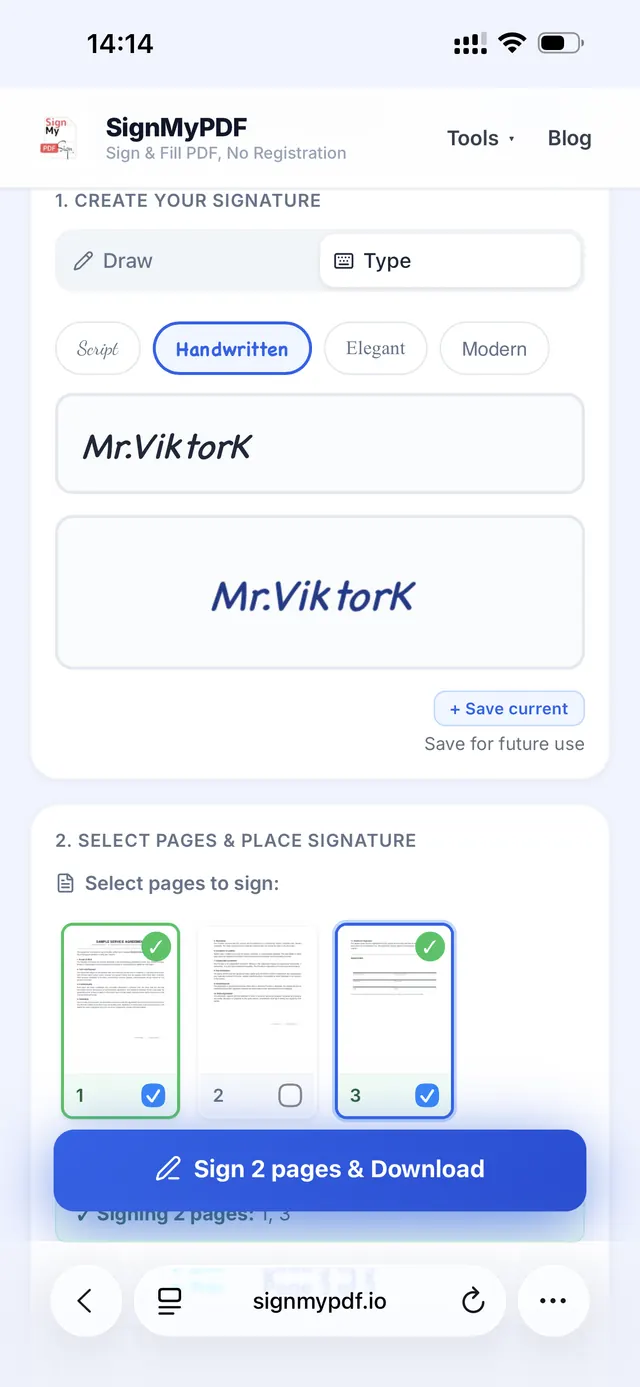
Open signmypdf.io/sign and upload the PDF. The Draw tab gives you a wide canvas plus five ink colours and three stroke weights. The Type tab takes your name and renders it in one of four styles: Script, Handwritten, Elegant or Modern. Typing takes about five seconds and comes out identical every time. The desktop flow is the same — how to sign a PDF online walks through it on a laptop.
Choose which pages get signed
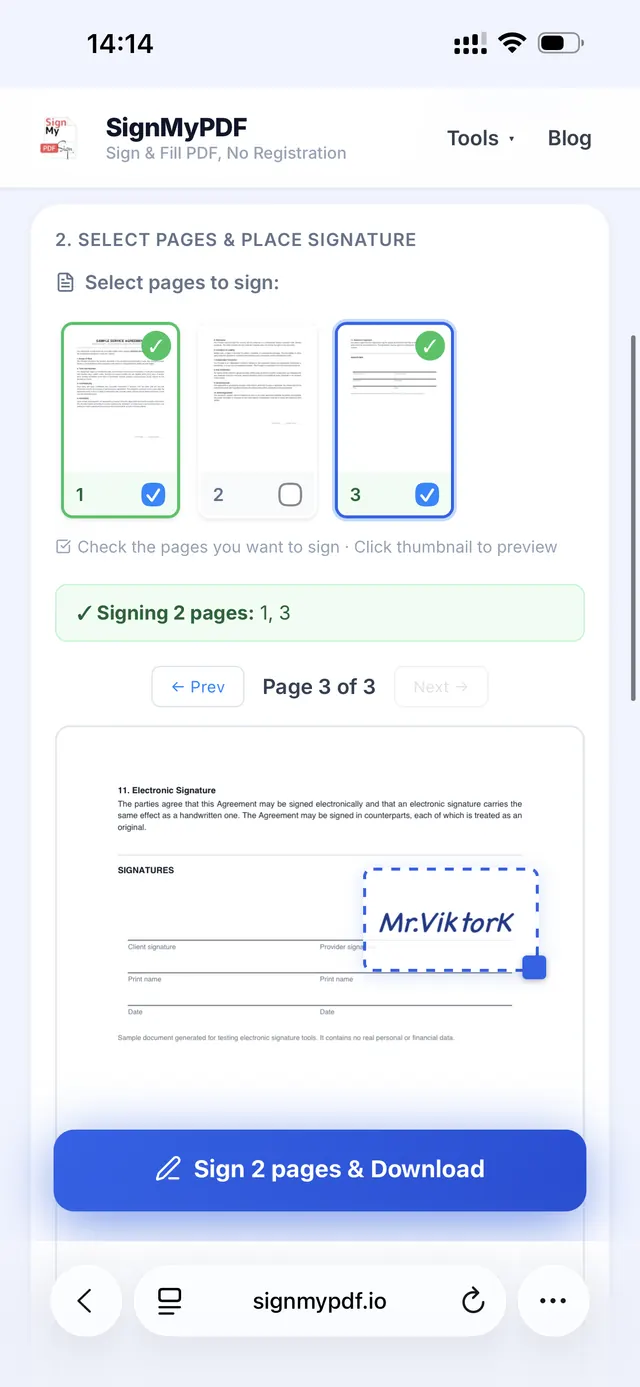
Page thumbnails appear with a checkbox on each one. Tick the pages you need and all of them get the signature in the same pass. On a three-page agreement where page 1 takes initials and page 3 takes the signature, that is one action instead of two rounds of manual placement.
Place it and download
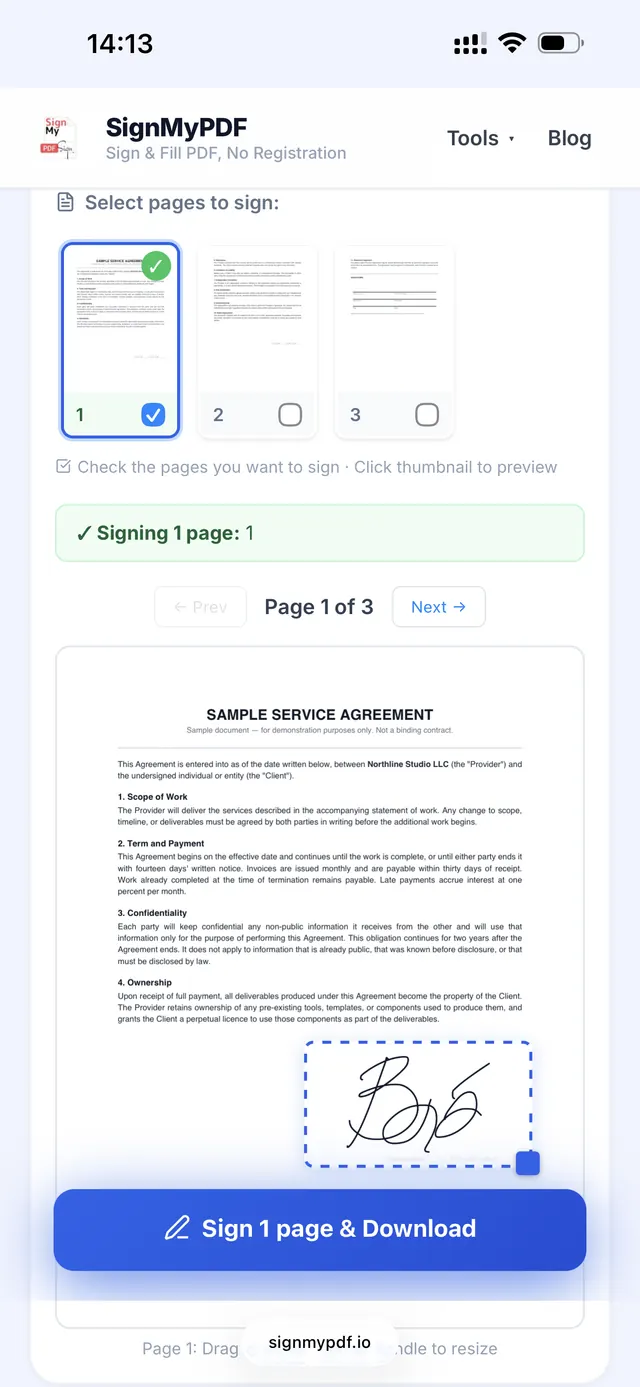
Tap the page to drop the signature, drag to move it, use the corner handle to resize. Then tap Sign & Download. The signature is flattened into the page, so nobody can pull it off afterwards.
Try it on your own PDF
Typed signatures, several pages at once, real form fields. Free in your browser.
Sign a PDF FreeThe file is processed inside your iPhone's browser and never reaches a server, which matters when the document is a lease, a bank form or an employment contract. Two documents a day are free with no account.
Method 3 · App Store
Dedicated iPhone PDF apps
Adobe Acrobat Reader, PDF Expert and Smallpdf all have iOS apps with signing built in. They make sense if you sign documents most days and want offline access and a synced signature library.
For a single document they are slow. A 200 MB download, a signup and an upgrade prompt take longer than either method above. If you are avoiding Adobe specifically, see how to sign a PDF without Adobe; if the document is going to a client who expects an e-sign service, a free DocuSign alternative covers that case without the subscription.
Markup vs browser vs app
| iOS Markup | Safari + SignMyPDF | App Store app | |
|---|---|---|---|
| Install required | None | None | 50–200 MB |
| Account required | No | No | Usually |
| Typed signature | No | Yes, 4 styles | Yes |
| Several pages at once | No | Yes | Yes |
| Reads existing form fields | No | Yes | Yes |
| Signature flattened into page | No | Yes | Usually |
| Password-protected PDF | No | Yes | Yes |
| File leaves the device | No | No | Often |
| Cost | Free | Free, 2 a day | Free tier or subscription |
Troubleshooting
The Markup icon isn't there
Save the file into the Files app and open it from there. If it still does not appear, the PDF is either password protected or it is a scanned image rather than a real PDF.
My signature looks nothing like my real one
Rotate to landscape before drawing. If that is not enough, sign a sheet of paper, photograph it and upload the image, or switch to a typed signature.
I can't type into the form fields
Markup cannot fill interactive fields. See PDF form fields not working.
The signature disappeared after I sent the file
This happens when the signature was saved as an unflattened annotation. Full explanation in why a signature disappears from a PDF.
The PDF says editing is not allowed
Permissions are set on the file. See sign a PDF with no editing allowed.
The signed PDF looks different when someone else opens it
Usually a font or annotation-rendering difference between viewers. See signed PDF looks different — fix.
Nothing downloads in Safari
Open Settings, then Safari, then Downloads, and confirm a destination is set. If a download stalls, see PDF not downloading after signing.
Is a signature made on an iPhone legally binding?
In the United States, yes. The ESIGN Act and UETA make an electronic signature legally equivalent to a handwritten one, and neither law distinguishes between a desktop, a laptop and a phone. Wills, some family-law documents and certain notarised instruments still require wet ink in many states. More detail in electronic signature laws by state.
Frequently asked questions
How do I sign a PDF on iPhone without an app?
Open the PDF in Mail or Files, tap the Markup icon, tap the blue plus button, choose Add Signature, sign with your finger and drag it onto the signature line. For a typed signature, several pages at once, or fillable form fields, open signmypdf.io/sign in Safari, which also needs no install.
Where is the Markup tool on iPhone?
It is the pen-tip icon in the bottom toolbar when a PDF is open in Files, Mail or Photos. In some views it sits inside the share sheet under "Markup".
Can I sign a PDF on iPhone for free?
Yes. Markup is free and unlimited. SignMyPDF is free for two documents a day with no account.
Can I type my signature instead of drawing it?
Not in Markup. It takes finger input only. Browser tools and full PDF apps let you type your name and pick a signature style.
Can I sign several pages at once on iPhone?
Not in Markup. Each page is placed by hand. A browser tool with page selection applies the signature to every ticked page in one pass.
Does my signature save for next time?
Yes. Markup stores it on the device and syncs it to Preview on a Mac through iCloud.
Does this work on iPad?
Yes, the steps are identical. An Apple Pencil gives a noticeably better result than a fingertip.
Does this work on Android?
The steps differ but the idea is the same. See sign a PDF on Android free.
Related guides
Need what Markup can't do?
Typed signatures, several pages at once, real form fields. Free in your browser, no app, no account.
Sign a PDF Free